Postingan

Menampilkan postingan dengan label GOOGLE DRIVE

Educational YouTube channels you don't want to miss.

Gambar
Recently, we moved away from a managed media source for our district.  For some, this move left us with no places to look for quality educational videos.  Luckily, YouTube has become a great resource for educational videos.  I am sharing some sites that have excellent YouTube channels suggestions.  I encourage you to click on the resources below to learn more about the channels and subscribe to them.  Once subscribed, you can handpick the videos you would like to keep for classroom use and add them to your own playlist.  In this post, you will also see a quick tutorial on how to subscribe to channels, create your own playlists and share them with others. Some of you may already have some channels you use and would like to recommend to fellow teachers.  If so, feel free to add to the following live list of teacher recommended YouTube EDU channels by clicking here . 30+ YouTube Channels for teachers 197 Educational YouTube channels you should know about ...

Google Classroom Hacks and Tips

Gambar
Most of you have joined Google Classroom and have experienced it for a couple of weeks.  During its use, you may have noticed a couple of hiccups that Google has not provided a fix for.  I have found some workarounds to some of the common problems you may have encountered. Google Classroom Hacks Problem 1 : There is no way to add a Co-Teacher to my class.   Solution :  Share the "Classroom" folder housed in your Google Drive with your Co-Teacher and give her/him editing rights.  This will allow the other teacher to see all assignments and comment on them too. While this is not the perfect solution because the co-teacher cannot grade assignments, this workaround is better than adding the co-teacher as a student to your class.  Doing the latter will not allow her to see all student's assignments. Problem 2:  I can't share an entire folder of resources with my students through Classroom Solution :  Select the folder that you want to share with stude...

Meet the New Google Drive

Gambar
Google has recently launched the new Google Drive- yes, right when I was pretty much comfortable with it ;) And as you know, your current google Drive will eventually transition into the new Google Drive. We might as well learn how to use it now. To enable the new Google Drive: Go to your Drive, click on the gear-shaped icon to access your settings and then click on "Experience the New Drive" While it looks very different from the old Google Drive, it has the same functionalities and some more. Click on this Guide to learn more about it.

Back to School with Chromebooks

Gambar
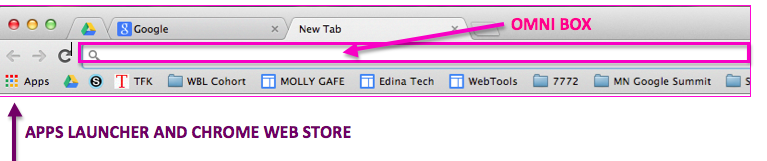
I have decided to re use Molly Schroeder's post and add some tweaks for our schools. Thank you Molly for publishing this! "Many of you are heading back to school this year with more devices in the classroom that you’ve ever had access to!  Chromebooks have spread like wildfire into schools all over the world and now students have the world’s information at their fingertips!  Let’s make sure that we use those devices for engaging, real world learning in the digital age. Here are a few things to think about as you head back to your Chromebook Classroom. 1.  Make sure to review Chromebook vocabulary together in the first week so that you are all on the same page when you talk about the OmniBox, Tabs and Extensions.   Remember you can Hide or show your bookmarks bar with command +B or Control +B. Even pointing where the "Apps List" and the "Hot Dog" are is important. The refresh button above the number 4 key on your Chromebook - we call it the Google Magic Butt...

Start the year right with these Gmail Hacks.

Gambar
After a full first week of school under your belt, you must feel like you still have to get a lot of things organized.  Here are some hacks that could help you be a little more efficient and organized. 4 Gmail Hacks Wish you had an "undo" send button for those Oops moments when you sent an email you weren't ready to send yet.  Now you can!   To enable this, simply go to your "settings" under the gear shaped icon on the top right-hand side of your screen, click on it and click on "settings" again. You will see this screen: Click on "labs, scroll down to see "undo send" and enable it.  You will have up to 30 seconds to undo your send.  But hey, that's better than 0 seconds! 2. View your Calendar right on your email- It is very annoying to have to go to your calendar for a quick glance at what your day is going to look like.  With the calendar lab, you can see your calendar right on your email window.  It is very convenient.  To enable ...

10 sentences Google Students Never Hear

Gambar
What do you and your students hear less if you are actively using Google Apps?

Organize + Manage = Efficiency

Gambar
Have you ever wondered how to organize your student digital content in Google Drive?  Are you tired of having students email you attachments, only to find that your inbox is cluttered with student mail? have you found yourself fishing for a student's assignment in a pile of emails? well...those days are gone! With Google Drive and its sharing capabilities you will keep your inbox clean and still hold on to your sanity. In this video tutorial, you will learn how to create a folder in your Google Drive that will host your student work and that will automatically update every time your students share an assignment with you.  Your students will not need to email you every time they want to turn in an assignment. Nor will they have to attach files to their emails. Watch the tutorial and learn how to organize and manage Google Drive, you will become more efficient and waste less time.

The power of everywhere!

Ever wonder how to get all of your documents accessible to you anywhere, anytime? with Google Drive you can. You don't have to learn another password or another website! Simply log in to your gmail account and click on the word "Drive" on the top black bar of your page. This will take you to your "Drive" but....what is Google "Drive" you may ask.  Google Drive is a virtual space only assigned to you, accessible only to you any time any where from any device (desktop computers, Smart phones and tablets) It's like a computer's hard drive where you normally save all your documents. You can upload existing documents to your Google Drive or create new ones. You can "share" documents with anyone in the district rather than emailing and remembering to "attach" the document.  If you are a teacher, you can share assignments or documents with your students and they can share theirs with you. The students can also create presenta...

The latests "How To"

Gambar
So, I have received a lot of emails requesting two things: 1. How to make sure our blogs do not have the navigation bar on the top that reads "search blogs and next blog or previous blog"?  If a student clicks "next blog" it is taken to a random blog outside our school domain. and... 2. How do I retract an email after I sent it?  If I changed my mind after I send my email or maybe I sent it by mistake, how do I retract it? I decided to post the answers to these questions below.  I think they will be helpful for all of us! 1. How to remove the navigation bar on Blogger blogs: First, log in to your Blogger.  You can do this by logging in through the district's website and clicking on the Google Apps icon on the right, typing your username and password and then clicking on the "blogger" icon on the left.  You can also log in to your gmail through Google on any browser; you will be taken to your email.  Click on "more" at the top and choose ...