Summer is coming to an end and a new school year starts! Here are new features that you will enjoy from Google for Education. Posted by Dina Kachintseva, Classroom Software Engineer and Felix Wang, User Experience Designer As any teacher would tell you, the classroom isn’t the only place where learning happens — it’s just the tip of the iceberg. From parents who help students with homework, to extracurriculars, field trips and more, there are so many ways students can learn beyond the walls of the classroom. This is why today we’re announcing new features to help teachers inspire learning for students, regardless of place or time. Parents and guardians stay informed with Google Classroom email summaries Parent participation has a major impact on student learning. Today, we’re launching a new feature in Google Classroom that will automatically share summaries of student work with parents . Once invited by a teacher, parents and guardians can receive automated dai...
One of the true keys to learning and developing any ability is the willingness and capacity to reflect on what we have learned. So how can we encourage our students to reflect on what they have learned? Generally we want them to reflect from a slightly more distant perspective of time rather than more immediately within the classroom and this is where Recap can really help. Recap is a cross platform app that allows teachers to create classes and manage students and set them reflection questions that they can respond to using video on their laptop webcam or smart phone from their own home. How does Recap work? To create a class and add your students just register on the site as a teacher. Once you have registered you click on Add Class and complete the class details form. You can also decide at this point whether you want your students to register with a PIN or an email. Email is a better option for older learners, whereas a PIN is better for younger ones as this doesn’t require them to...
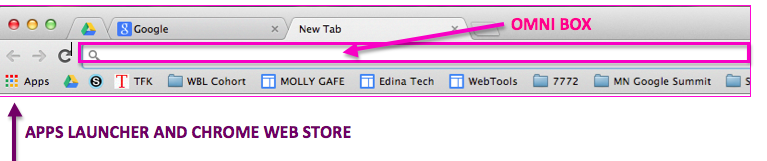
I have decided to re use Molly Schroeder's post and add some tweaks for our schools. Thank you Molly for publishing this! "Many of you are heading back to school this year with more devices in the classroom that you’ve ever had access to! Chromebooks have spread like wildfire into schools all over the world and now students have the world’s information at their fingertips! Let’s make sure that we use those devices for engaging, real world learning in the digital age. Here are a few things to think about as you head back to your Chromebook Classroom. 1. Make sure to review Chromebook vocabulary together in the first week so that you are all on the same page when you talk about the OmniBox, Tabs and Extensions. Remember you can Hide or show your bookmarks bar with command +B or Control +B. Even pointing where the "Apps List" and the "Hot Dog" are is important. The refresh button above the number 4 key on your Chromebook - we call it the Google Magic Butt...


Komentar
Posting Komentar